






Home / Integration plugins / Niagara 4 SMS integration
Niagara4 and SMS Eagle logos side by side, indicating a partnership or integration

Instant SMS and Voice Alerts for Niagara 4.

Never miss a critical event.

Integrating the Niagara 4 building management platform with the SMSEagle hardware SMS gateway lets you automatically send SMS / Voice alerts about HVAC failures, power issues, or security problems. The solution creates a network-independent communication channel, which is key for keeping your facility’s monitoring running continuously.

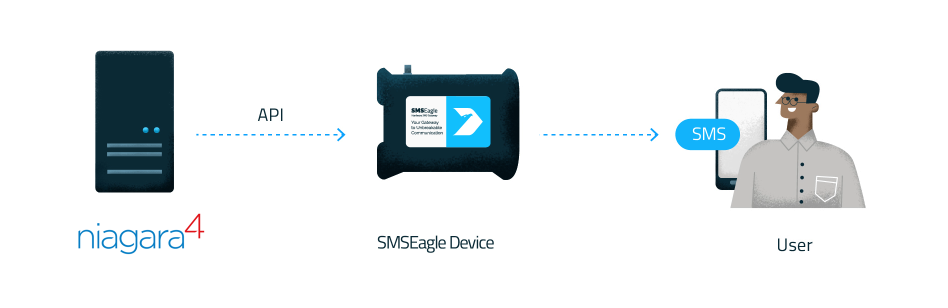
Flow from Niagara 4 server to SMSEagle device via API, then to a user receiving SMS on a mobile.
Verified security badge: blue shield outline with a dark circle and white checkmark indicating protection and trust.

Reliable alert delivery

Ensure critical alarms are delivered via SMS / Voice even if the network or email systems fail. This guarantees visibility and response in emergency situations.

Icon depicting a hand interacting with a circular timer/clock motif and a rectangular element, suggesting a user action with time or sequencing

Faster response to
incidents

Alerts go directly to technicians’ phones as SMS or a voice call, whichever gets noticed fastest, reducing reaction time and minimizing downtime. No need to log into the system to be informed.

Communication tower emitting radio waves from a tall antenna structure

Independent and secure SMS / Voice
communication

On-premise gateway removes dependency on external providers and cloud services. This improves security, compliance, and operational control.

How it works?

1

Event Trigger

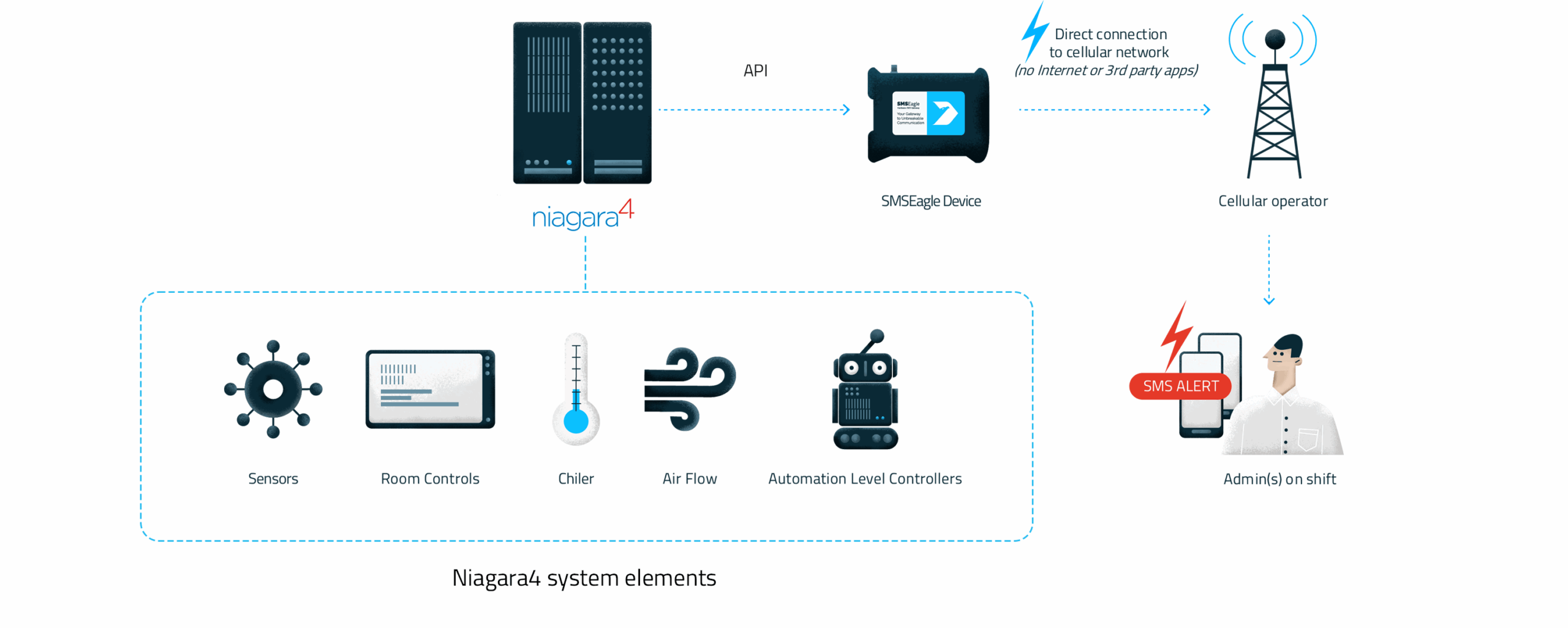
Niagara 4 detects a fault or threshold breach.

2

Communication

Niagara sends a request to SMSEagle via local network.

3

Alert

SMSEagle sends a cellular SMS / Voice message to the maintenance team.

Integrate in 10 minutes

No extra apps, no new software to learn. Drag‑and‑drop integration into your existing BMS and alarm design.
99% of setup is done inside
the Niagara Station. Just enable API access on the SMSEagle device,
and you’re ready – fast, simple, and installer‑friendly.  Time is money – save both.

Multi-channel alerts that get noticed

The SN-SMSEagle module supports multiple notification methods, allowing the alarm workflow to be tailored to the specific requirements of each project. Multi-channel notification is particularly useful in systems where critical events must reach on-call personnel quickly and reliably.

SMS

Voice calls

SMS & voice calls

Text-to-Speech

Advanced
multilingual TTS calls

WhatsApp messaging

Key features​

Native Niagara components
in a single interface

The components of the SN-SMSEagle module can be used directly on the Niagara Workbench wiresheet. SMS, WhatsApp, voice call, contact management and SlotReader functions are provided as separate components that can be integrated into existing alarm logic.

SMS-based alarm notifications

The SMS component automatically forwards alarms generated by the Niagara system to the relevant on-call personnel. The message content can include dynamic alarm information, such as the alarm source, status, timestamp or unique identifier.

WhatsApp notifications

The module also supports WhatsApp messaging, allowing alarms to be delivered through a familiar mobile communication channel. The WhatsApp component can be used for forwarding alarm messages in the same way as the SMS component.

Voice call and Text-to-Speech alarms

The call component can automatically initiate a voice call when an alarm occurs. Depending on the selected call type, the system can use a standard ringing call, spoken text or an advanced Text-to-Speech call.

Two-way alarm acknowledgment from a mobile phone

The SN-SMSEagle module does more than send notifications. It also enables alarms to be acknowledged directly from a mobile phone. On-call personnel can manage alarms by replying with commands such as ACK, ACK ALL or DETAILS. User settings can define who is allowed to receive notifications and who is authorized to reply to and acknowledge alarms.

Queue management, connection settings and alarm filtering

Queue Config, Connection Config and Alarm Filter settings can be used to control how messages are sent. The SMSEagle device connection details, maximum message queue size and the alarm states that trigger notifications can all be configured. This helps the system manage outgoing messages in a transparent and controlled manner, even during periods of high alarm activity.

Contact and group management

The ContactManager component allows SMSEagle contacts and groups to be viewed and managed directly from Niagara Workbench. Recipients can therefore be selected not only by entering individual telephone numbers, but also by using stored contacts or complete contact groups.

Reading SMSEagle NXS I/O data

For NXS-type SMSEagle devices, the SlotReader component can be used to display digital input and output states, as well as temperature and humidity data, within the Niagara system. This means that the SMSEagle device can be integrated into the station not only as a communication gateway, but also as a source of status and I/O information.

Native Niagara integration​

The SN-SMSEagle module can be used directly in a Niagara 4 environment. Its components are available from the palette and can be integrated into standard Niagara wiresheet logic. The module supports the configuration of SMS-based, call-based and user-specific alarm workflows. Its transparent Niagara-side architecture makes the system easier to document and maintain.

Result: faster commissioning and a more transparent system architecture.

Hardware I/O support
for NXS devices

For NXS-type SMSEagle devices, the module can display selected hardware I/O points and device status information within the Niagara system.

As a result, the SMSEagle device can be used not only as a communication gateway, but also as an integrated source of status and I/O information within the Niagara system.

Supported functions:

Reading digital inputs

Controlling digital outputs

Displaying temperature data

Displaying humidity data

Monitoring device statuses

Why SN-SMSEagle is more than a simple SMS alarm?

SMSEagle is an industrial-grade, locally deployable SMS gateway that sends and receives messages and calls directly via the mobile network. The SN-SMSEagle driver integrates this functionality directly into the Niagara Framework environment, without the need for external middleware or workaround solutions.

Immediate voice calls

  • faster response times,
  • fewer misunderstandings,
  • reduced operational stress.
Verified security badge: blue shield outline with a dark circle and white checkmark indicating protection and trust.

Reliable operation

  • no frozen modem,
  • no lost alarms – stable operation even in critical situations.

Single alarm logic

  • well-structured alarm architecture
  • straightforward configuration logic

Engineer-friendly commissioning

  • rapid deployment
  • a clear, well-structured system that simplifies day-to-day operations

Application areas

Building management systems and BMS applications

Industrial automation

Data centres

Critical infrastructure

On-call and remote monitoring systems

Energy facilities

Healthcare and technology environments

Systems where delayed response may result in significant risk

Key technical features

Niagara 4.x support

Supervisor and JACE deployment

API2 support

SMS, Voice Call, Text-to-Speech & Advanced Text-to-Speech functions

WhatsApp messaging support

AlarmDemux support

Contact-based and group-based addressing

Queue management

PIN-protected alarm acknowledgment

Token-based authentication

How to set up the integration

Please note

The Niagara integration described below is a product developed and maintained by SmartNode, our Technology Partner. For the latest information on the plugin, configuration details, and updates, please refer to the official SmartNode documentation.

This document is a setup and usage guide for the SNSmsEagle module. It shows you how to import it into Niagara, how to place its components in the station, and how to use the component slots correctly. The manual assumes you have basic Niagara Workbench knowledge, as well as basic IT and networking concepts. No programming knowledge is required.

SMSEagle also offers its own, earlier Niagara integration. This version is legacy and is no longer being developed. We recommend using the SmartNode integration instead, as it is the actively maintained solution.

Introduction

SNSmsEagle is an extension for the Niagara Framework that lets your station send SMS messages, make voice calls, and send WhatsApp messages through an SMSEagle hardware gateway. It integrates with Niagara’s alarm system, so alarms can automatically notify operators without manual intervention. Operators can also acknowledge alarms straight from their phone by replying to the message — without opening Workbench. The module talks to the SMSEagle device over its REST API (HTTP or HTTPS), so the device must be reachable from the station over the network.

  1. Copy SNSmsEagle-rt.jar into the Niagara modules folder (C:\Niagara\Niagara-4.x\modules\).
  2. Restart Niagara Workbench (or the station).
  3. Open the palette browser — the SNSmsEagle palette is now available.
  4. Optionally copy SNSmsEagle-doc.jar to the same folder to get this documentation inside Workbench under Help.

You will also need:

  • An SMSEagle device reachable from the station.
  • The device IP address or hostname.
  • An API token generated on the SMSEagle device (Web-GUI: Users → Access to API → Generate token).
  • The SNLicenseService-rt.jar license service installed in the station — the module will not send without it.

When building your station you can place the following components:

  1. SmsEagleFolder – Container for the SNSmsEagle components. Add this first, then place the other components inside it.
  2. SmsEagleSms – Sends SMS messages. Supports alarm integration and two-way acknowledgement by reply.
  3. SmsEagleCall – Makes voice calls (ring, text-to-speech, or AI text-tospeech).
  4. SmsEagleWhatsApp – Sends WhatsApp messages. Supports alarm integration and two-way acknowledgement.
  5. SmsEagleSlotReader – Reads digital inputs/outputs and the temperature sensor of an SMSEagle NXS device.
  6. ContactManager – Manages the SMSEagle phonebook (contacts and groups) from within Workbench.
  7. SmsEagleRouter – Tests whether a given SMSEagle modem is reachable and reports its online status.
  8. User – One recipient. Added as a child of an Sms, Call, or WhatsApp component.

Connection slots

Every messaging component has a collapsible connectionConfig group:

  • Protocol: http:// or https://. Use HTTPS where possible.
  • Url: the IP address or hostname of the SMSEagle device (for example 192.168.1.50).
  • Port: leave at -1 to use the protocol default (80 / 443), or set it explicitly for a non-standard port.
  • ApiKey: the API token from the SMSEagle Web-GUI.

Recipients (User components)

Add one or more User components as children of the Sms / Call / WhatsApp component. Each User has the following slots:

  • Username: a display label shown in Workbench. Not sent to the device.
  • Enabled User: set to true to include this recipient.
  • To: a phone number in E.164 format (for example +31612345678).
  • Group: an SMSEagle phonebook group — sends to all of its members.
  • Contact: an SMSEagle phonebook contact — the device looks up the number.
  • Can Respond: allow this recipient to acknowledge alarms by reply (see Section 10). They also receive the reply instructions in the message.
  • Ack Pin: optional shared secret this recipient must include in their ACK replies (see Section 10.2). Leave blank for no PIN. Masked in Workbench.

Important: fill exactly one of To, Group, or Contact per User. Selecting one clears the others. To target both a direct number and a group at once, add two separate User components.

Refresh Phonebook: the Group and Contact fields are filled from dropdowns. Run the Refresh Phonebook action (on the parent component or on the User) to load the current contacts and groups from the device, then pick from the dropdown. Run it again whenever the SMSEagle phonebook changes.

Alarm filter

very messaging component has a collapsible alarmFilter group that controls which alarm states trigger a message:

  • Enabled Offnormal: send when an alarm becomes active (most common).
  • Enabled Normal: send when an alarm returns to normal.
  • Enabled Fault: send when an alarm enters a fault state.
  • Enabled Ack Msg Alarm: send when an alarm is acknowledged.
  • Enable: master on/off switch.
  • Message Type: SMS for a single modem, or Multi-channel to spread messages across several modems automatically.
  • Text: the message body. Supports alarm template variables (see Section 9.1).
  • Modem No: the modem to use. 0 means automatic selection.
  • Ringing Duration: only used for Multi-channel ring; ignored for plain SMS.
  • Fault Cause (read-only): the reason for the last failed send.
  • Response (read-only): the raw response from the last API call.
  • Last Msg (read-only): the content of the last message sent.
  • Debug (hidden): logs the full API request/response to the station log. Useful for troubleshooting.
  • Enable: master on/off switch.
  • Call Type: ring (ring only, no audio), tts (text-to-speech read aloud from Text), or tts_advanced (AI voice; needs a voice configured on the device).
  • Text: the spoken message for the TTS call types. Supports template variables.
  • Modem No: 1-based modem number (default 1).
  • Voice Id: the AI voice identifier, for tts_advanced only.
  • Ringing Duration: seconds to ring before hanging up.
  • Fault Cause, Response, Last Msg, Debug: as in the SMS component.
  • Enable: master on/off switch.
  • Text: the WhatsApp message body. Supports template variables.
  • Fault Cause, Response, Last Msg, Debug: as in the SMS component. The WhatsApp component uses the same connectionConfig, alarmFilter, ackConfig, and QueueConfig groups as the SMS component, and supports the same ACK and DETAILS replies.

To have a component send a message automatically when a Niagara alarm fires, link the desired alarm classes “Alarm” slot to the “Alarm Demux” slot of the SNSmsEagle component.

Message template variables

The Text slot supports placeholders that are replaced with live alarm data before the message is sent:

  • %alarmData.sourceName% – the alarm source name
  • %alarmData.presentValue% – the current value
  • %alarmData.lowLimit% / %alarmData.highLimit% – configured limits
  • %alarmData.msgText% – the alarm message text
  • %timestamp% – the time the alarm fired
  • %sourceState% – the alarm state (offnormal, normal, fault)
  • %ackState% – the acknowledgement state
  • %priority% – the alarm priority number
  • %alarmClass% – the alarm class name
  • %uuid% – the full alarm identifier
  • %uuid-prefix% – the first 6 characters of the identifier (for example f04ab0), used in ACK replies

Example Text:
ALARM: %alarmData.sourceName%
State: %sourceState% | %timestamp%
Reply: ACK %uuid-prefix%

Keeping a changing token such as %timestamp% in Text is recommended — two messages with identical text in a row are suppressed, so a static template could drop a genuine repeat alarm.

After receiving an alarm message, an operator can reply from their phone to acknowledge the alarm in Niagara. How it works: the alarm message is sent; the station then periodically checks the SMSEagle inbox for replies; a valid reply acknowledges the matching alarm; optionally a confirmation is sent back.

Reply commands

  • ACK – acknowledge the pending alarm. Only accepted when exactly one alarm is waiting.
  • ACK f04ab0 – acknowledge the specific alarm whose identifier starts with f04ab0. The prefix appears in the message if you use %uuid-prefix% in Text. Use this when several alarms are pending.
  • ACK ALL – acknowledge all pending alarms at once.
  • DETAILS / DETAILS f04ab0 – reply with the current details of the last alarm, or of the alarm with that prefix, without acknowledging it.

If you send a plain ACK while several alarms are pending, the station replies with a list of the pending alarms so you can pick one.

Securing ACK with a PIN

A phone number on an incoming reply is not a reliable proof of identity — sender numbers can be faked at the network level. To prevent someone from acknowledging alarms by faking an authorized operator’s number, set an Ack Pin on the recipient’s User component. The operator then appends this PIN to every command, and the station ignores any reply without the correct PIN.

  • How to use: append the PIN to the command, for example ACK ALL 4729, ACK f04ab0 4729, or DETAILS 4729. The PIN can go anywhere in the reply and is not case-sensitive.
  • Per person or per team: give each operator a different PIN, or set the same PIN on several recipients for one shared team code.
  • No PIN set: if Ack Pin is blank, no PIN is required and the recipient is authorized by phone number alone.
  • Wrong or missing PIN: the reply is silently ignored — no error is sent back, so an attacker gets no confirmation that the number is recognized.
  • Recommended PIN: at least 6 characters, mixing letters and digits, not an obvious sequence. Do not reuse the public alarm prefix (%uuid-prefix%). Change the PIN when staff leave.

Note: the PIN protects against faked sender numbers. It cannot protect against an attacker who can actually read the operator’s messages (a stolen phone or a hijacked SIM). Treat ACK-by-message as a convenience, not a safetycritical control.

ACK settings (ackConfig group)

  • Enable Ack Support: master switch for inbox checking and ACK replies.
  • Poll Interval Secs: how often the inbox is checked while alarms are pending (default 30).
  • Ack Delay Secs: seconds after sending before a reply is accepted — accounts for delivery time (default 30).
  • Ack Timeout Hours: how long to wait for a reply before giving up on an alarm (default 24).
  • Enable Ack Confirmation Message: send a confirmation back after a successful ACK.
  • Ack Confirmation Message: the confirmation text (supports template variables).

SmsEagleSlotReader mirrors the real-time I/O of an SMSEagle NXS device into Niagara. It polls the device on a schedule and exposes each input, output, and the temperature sensor as readable points; outputs can also be written from the wiresheet.

  • Enable: master on/off switch.
  • Normal Rate / Slow Rate / Fast Rate: the three poll-rate tiers (defaults 30 / 60 / 5 seconds).
  • Fault Cause (read-only): the last connection or polling error.
  • Refresh Now: poll all enabled slots immediately.

Under the component you will find sub-components for the 4 digital inputs, the 4 digital outputs, and the temperature group. Each has:

  • State: current value. Read-only for inputs; writing an output’s state sends a command to the device.
  • Enabled: set to false to skip polling that slot.
  • Poll Rate: normal, slow, or fast.

The temperature group also shows Sensor Status, Temperature (°C), and Humidity (% RH). Requires an SMSEagle NXS device — the I/O and temperature endpoints exist only on NXS hardware.


ContactManager lets you manage the SMSEagle phonebook from Workbench, without opening the SMSEagle web UI. Configure its connectionConfig group, then run the refresh action to load the phonebook. It has four sections:

  • contacts: list contacts; Add Contact (name + number); Delete Contact (chooser).
  • groups: list groups; Add Group; Delete Group (chooser).
  • editGroups: move a contact in/out of a group (Add To Group / Remove From Group).
  • querySection: search message history by folder, date range, and contact/number (Query Messages).

Each Sms / Call / WhatsApp component has a QueueConfig group:

  • Max Queue Size: maximum queued messages (1–300, default 50). If the queue fills, new messages are dropped with a fault.
  • Queue Size Now (read-only): current queue depth.
  • Queue Content (read-only): a preview of the queued messages.

The emptyQueue action clears all pending messages. Note: if the device is unreachable, a message is retried every 20 seconds until it succeeds, and the messages behind it wait. Size Max Queue Size for the burst of alarms you need to survive during a possible outage.

  • Manual: right-click the component and invoke the sendRequest action.
  • Automatic: wire a schedule, trigger, or boolean point to the sendRequest action, or route alarms to alarmDemux (see Alarm integration).
  • Nothing sent / error in Fault Cause: read the Fault Cause slot — it shows the error in plain text. Common causes: wrong API key, wrong URL, device unreachable, firewall blocking the port.
  • No message on alarm: check that Enable is true, the alarm recipient points to alarmDemux, the alarmFilter has the right states enabled, and at least one User child is enabled with a valid To, Group, or Contact.
  • ACK reply not working: confirm Enable Ack Support is true; the reply comes from the recipient’s number; and, if an Ack Pin is set, the correct PIN is included in the reply.
  • Detailed logging: set the hidden Debug slot to true (AX Slot View) to log the full request and response.
  • HTTPS certificate error: if the device uses a self-signed certificate, the HTTPS connection may be rejected. Install a valid certificate, trust it in Niagara, or use http://.

Driver availability & licensing

The SN-SMSEagle driver is available exclusively through our Partner and is subject to separate licensing terms.
For pricing, licensing details, or technical consultation regarding the SN-SMSEagle driver, please contact SmartNode directly.

How to Set Up the Integration

Notice: Voice functions are only available to users who have purchased the VOICE add-on for their SMSEagle device.

Full driver documentation is available here.

SMSEagle Setup

    1. Create a new user in SMSEagle (menu Users > + Add Users).
    2. Grant API access to the created user:
      • click Access to API beside the newly created user
      • Enable APIv2
      • Generate new token (copy it for later use)
      • Add access permissions in section Messages for: Send SMS
      • Add access permissions in section Modem for: Make a ring call, Make a TTS, Make a TTS Advanced call (for voice alerting)
      • Save settings

Niagara 4 Setup

To enable SMS alerts via SMSEagle Hardware SMS Gateway you need a SMSEagle driver for Niagara. The driver’s main purpose is to serve as a gateway to send SMS via SMSEagle for Tridium Supervisor 4, JACE8000, or JACE9000 stations (and OEM variations i.e. Centra Line, Trend, …).

1. Driver Installation

  • download the zip archive with driver files (the driver is free of charge). The driver is also available in Niagara Marketplace
  • extract the zip archive and copy all included *.jar files to your Niagara modules directory, which is typically C:\Niagara\Niagara-4.x.xx.xx\modules. For correct behavior, it is necessary to install *.jar files on the client platform (Workbench PC) and on the target platform (JACE8000 or Supervisor).
  • close the Niagara Workbench after inserting all the modules in the folder. Next time you start the Niagara Workbench the driver will be loaded in Niagara Workbench and immediately available for use.
  • notice: a service component is not required during the installation

2. Driver Configuration

a) connect your JACE 8000/9000 or PC with Tridium Supervisor 4 to the network
b) add new SmsEagleNetwork to your Drivers node
c) add new SmsEagleDevice to the network
d) configure newly added device

Fill in the following properties of SMSEagle Device

  • Enabled: set to True
  • Ip Address: fill in IP address or domain name of your SMSEagle device
  • Use Tls: set to True if you will use HTTPS connection (otherwise set to false)
  • Port: 80 (for HTTP connection) or 443 (for HTTPS connection)
  • Api Key: API key created in SMSEagle webGUI
  • Tts Voice Id (optional): set to 2 (for English voice text-to-speech calls)
  • Call Duration (optional): allows to configure a ringing duration for a voice call

Note: if you want to use HTTPS connection between Niagara and SMSEagle you must have SSL certificate correctly configured on SMSEagle device.

SMSEagle device settings: enabled, health shows fail, HTTP config with IP address, port and API key; text set to 'test'.

3. Properties of SMSEagleDevice

Every device has following properties:

  • To: recipient phone number (or multiple numbers separated with comma)
  • Group: (optional) group name defined in SMSEagle Phonebook. If you define the group in SMSEagle phonebook (it must be set as public), you may send SMS to the group of recipients
  • Priority: (optional) priority of SMS – value between 0-9 (9 is the highest priority)
  • Tts Mode: (optional) selects which endpoint TTS calls use – Tts Advanced (default; supports language selection on SMSEagle and natural sounding language) or Tts (legacy, English only, but faster processing).
  • Tts Voice Id: (optional) numeric identifier of the TTS voice to use, as defined in the SMSEagle webGUI > menu Calls. Applies to Tts Advanced calls only. For English set: 2
  • Text: text of SMS message

Every device has defined the following actions:

  • Send: send SMS to recipient defined in To parameter
  • Send Group: send SMS to the group defined in Group parameter
  • Ring Call: make wake-up call (ring only) to recipient defined in To parameter
  • Ring Group Call: make wake-up call (ring only) to group defined in Group parameter
  • Tts Call: make voice call with text-to-speech conversion to recipient defined in To parameter and with text defined in Text parameter
  • Tts Group Call: make voice call with text-to-speech conversion to group defined in Group parameter and with text defined in Text parameter
SmsEagle Device UI showing status down (yellow), To 123, Group 321, Text 'test', with actions: Send, Send Group, Ring Call, Ring Group Call, Tts Call, Tts Group Call.

4. Adding the SmsEagleAlarmRecipient

  • Open the smsEagle palette in Niagara Workbench.
  • Drag SmsEagleAlarmRecipient onto the station’s AlarmService (or a recipient folder beneath it).
  • In the Alarm Class whose alarms should be sent as SMS, add the recipient to its route so routed alarms reach the component.
  • Plug the SmsEagleAlarmRecipient component directly into Niagara’s AlarmService. This routes alarms to a configured SmsEagleDevice as an SMS, with native resolution of Niagara %alarmData.*% alarm format tokens.

Example configuration

ER diagram of an alarm system with tables DefaultAlarm, AlarmConfig, ConsoleRecipe, SmsEagleAlarm, and related Route/Status links.

The component does not communicate with the SMSEagle hardware directly. It reuses an existing SmsEagleDevice for all connection and recipient settings (IP address, API key, To, Priority). 

To send the source name and alarm message for every alarm of an Alarm Class:

  • Add a SmsEagleAlarmRecipient under AlarmService and add it to the Alarm Class route.
  • Set Sms Eagle Device Ord to your configured SmsEagleDevice.
  • Set Body Format to: %alarmData.sourceName%: %alarmData.msgText%

A resulting SMS could read: “AHU-1 Supply Temp: High temperature alarm”.

5. Properties of SmsEagleAlarmRecipient

The component has the following properties:

  • Enabled: master enable/disable. When set to false, the component ignores all routed alarms. Default: true.
  • Sms Eagle Device Ord: an Ord pointing to the target SmsEagleDevice (already configured with IP address, API key, To, etc.). The selector lists only SmsEagleDevice instances. If the Ord does not resolve to a valid SmsEagleDevice, the alarm is ignored and a warning is written to the station log.
  • Dispatch Mode: property with four options:
    • Sms (default) – send an SMS to the device’s To 
    • Tts Call – place a TTS call to the device’s To
    • Tts Group Call – place a TTS call to the device’s Group
    • Sms And Tts Call – both an SMS and a TTS call to the device’s To
  • Body Format: multi-line template for the SMS text, using Niagara alarm format tokens that are resolved against each incoming alarm record. Body Format supports all %alarmData.*% tokens provided by Niagara’s standard alarm token resolver. The most commonly used are:
    • %alarmData.msgText% – alarm message text
    • %alarmData.sourceName% – name of the alarm source
    • %alarmData.priority% – alarm priority
    • %alarmData.timestamp% – time the alarm occurred
    • %alarmData.sourceState% – source state (e.g. offnormal, normal)
    • %alarmData.ackState% – acknowledgement state

    Literal text may be freely combined with tokens.

Alarm recipient configuration panel for SmsEagle: set time range, days, transitions, route acks, enabled, device, dispatch mode, and message body format.

Alternative (advanced) driver for SMSEagle

If the standard driver described above does not meet your requirements, an alternative driver has been created by our Sales Partner Smartnode. Key features of the advanced driver:

  • Native Niagara Components in a Single Interface,
  • SMS-Based Alarm Notifications
  • WhatsApp Notifications
  • Voice Call and Text-to-Speech Alarms
  • Two-Way Alarm Acknowledgment from a Mobile Phone
  • Queue Management, Connection Settings and Alarm Filtering
  • Contact and Group Management
  • Reading SMSEagle NXS Digital I/O Data

Visit our partner’s page Smartnode for more details.

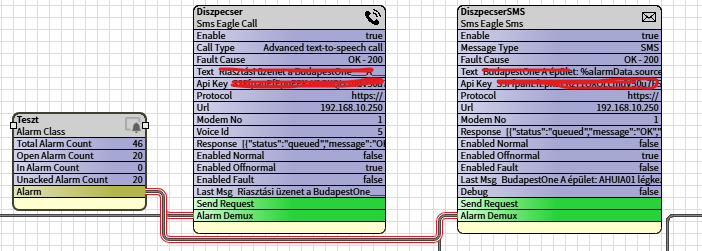
Example screenshot:

How to monitor Niagara4 (Supervisor)?

Niagara4 is a perfect monitoring tool, but what if its server hardware fails? Even the best hardware can experience failures. That’s where SMSEagle steps in with its feature called Network Monitoring. SMSEagle can monitor IP addresses or TCP ports and instantly send an SMS or make a call when a failure is detected. You may monitor:

  • Server reachability via Ping/ICMP
  • Web UI availability via HTTPS Check
  • CPU/RAM/Disk usage via SNMP

This ensures you can always keep an eye on your server hardware.

Explore SMSEagle Demo device

SMSEagle is a hardware & software solution that guarantees a swift delivery of your messages to designated recipients, whether it’s for notifications, alerts, or important updates.

After registering to a demo you get a remote access to our physical device NXS-9750.

  • 14-days free trial
  • Access to over 20 functionalities

What is hardware
SMS Gateway?

Learn more about
SMSEagle features